Test 3Updated 14 days ago
🛰️
GPS time
The dash cam uses GPS signal plus your selected GMT value to set accurate time.
⏱️
GMT value
Choose the correct GMT offset based on your location and Daylight Saving Time period.
📹
Correct timestamps
Accurate time helps keep your video clips organized and easy to find.
What does GPS Time Zone Setting do?
There are two ways to set the date and time on your dash cam: manually or by using the GPS Time Zone setting.
With GPS time, the camera automatically adjusts the date and time based on the GPS signal it receives and the GMT/UTC offset you select.
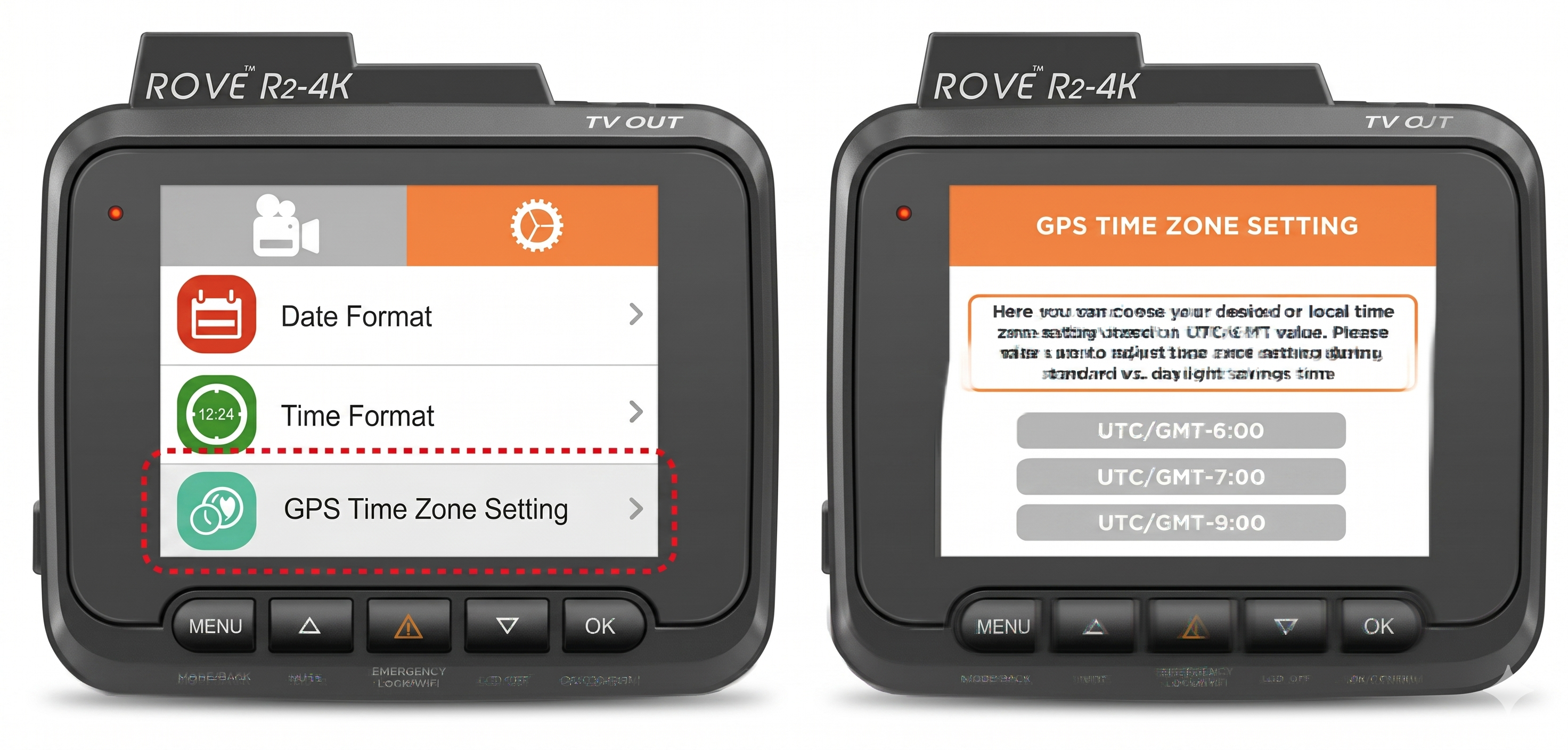
Step-by-step setup
Set your GPS Time Zone value
Quick menu path
System Settings → GPS Time Zone Setting → Choose Your GMT Value → OK/Confirm
USA GMT guide
Choose the correct GMT value
Important GPS time zone note
The GPS Time Zone setting will not automatically change when driving through different time zones. It only sets the accurate date and time based on the GMT time zone you selected.
Troubleshooting
If your date or time still looks wrong
Check the selected GMT value Make sure the GMT value matches your current time zone and Daylight Saving Time period.
Wait for GPS signal lock The dash cam needs GPS signal before it can update the date and time using the selected GPS Time Zone setting.
Update the setting after traveling If you travel to another time zone, manually update the GPS Time Zone setting to match your new location.
Still need help?
Our customer care team is here to help 7 days a week.
Note: Layout may adapt slightly based on your Gorgias Help Center theme and article width.