How do I know if a video is locked/protected from deletion?Updated 8 months ago
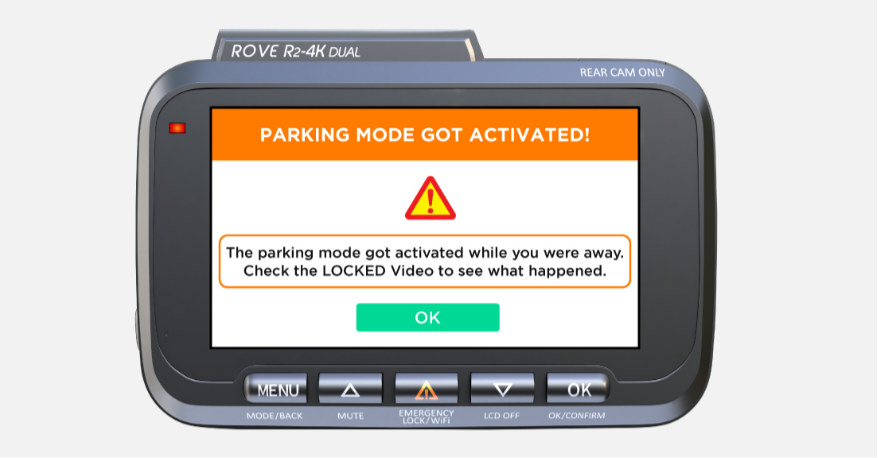
ROVE dash cams are designed to automatically protect important recordings, especially in the event of a sudden impact or emergency situation. These protected videos are referred to as “locked files”, and they are saved in a separate folder to prevent them from being accidentally overwritten or deleted during loop recording. Here’s how you can tell if a video is locked and how to access or manage it.

A locked video is a clip protected from deletion or overwriting. This can happen in two ways:
1. Automatically – When the camera’s built-in G-sensor detects a collision, shake, or sudden stop, it will automatically lock the current video.
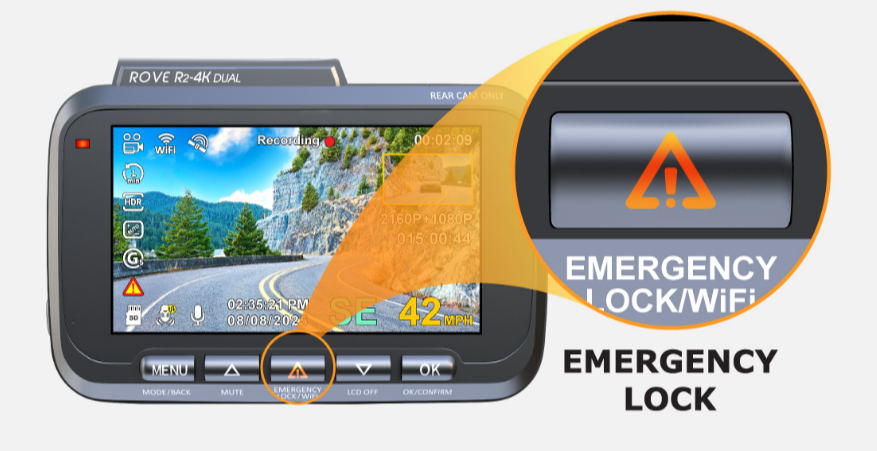
2. Manually – You can manually lock a video while recording by pressing the emergency lock button on the dash cam (usually marked with a triangle and an exclamation symbol

🔶 On the Dash Cam Screen: When a video is locked, most ROVE dash cams will show a key icon or lock symbol briefly on the screen to confirm the file has been protected.
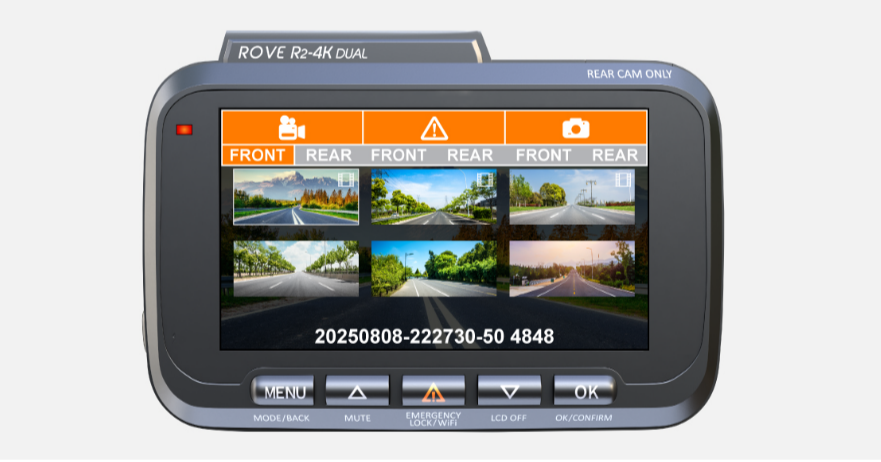
🔶In the File Menu on the Camera: Go to Playback Mode on the dash cam → navigate to the folder labeled “RO” or “Locked Files”. All locked videos are saved here.
🔶Through the ROVE App: When viewing videos in the app, you can tap the folder filter and locate the locked/protected files. These are stored separately from regular footage.
🔶On a Computer via SD Card: Insert your microSD card into your PC. Locked files will be found in a folder usually named “RO”, “Event”, or “Emergency”, depending on your dash cam model.

Yes, but only manually. Locked videos are not removed automatically by the dash cam’s loop recording feature. If your SD card becomes full and there are too many locked files, new recordings may stop until space is cleared. Use the ROVE App, your computer, or the dash cam’s file manager to manually select and delete the ones you no longer need.
CUSTOMER SERVICE:

Email Us: 📩[email protected]
Text Us: 📲1-844-768-3226 (For faster response)